
This article will highlight some of the common Errors customer receive when trying to set up the QuickBooks connector:
When setting up the QuickBooks connector to with the Online version, under the QuickBooks Setting section, you click Subscribe.
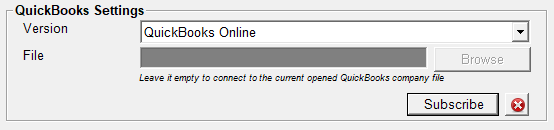
When you're finished online, if you see an error message (similar to the one below) in addition to showing a message that Bill4Time and QuickBooks were linked Successfully, you may have to walk through the "Subscribe" button again until you don't get an error when is shows Bill4Time and QuickBooks were linked Successfully.

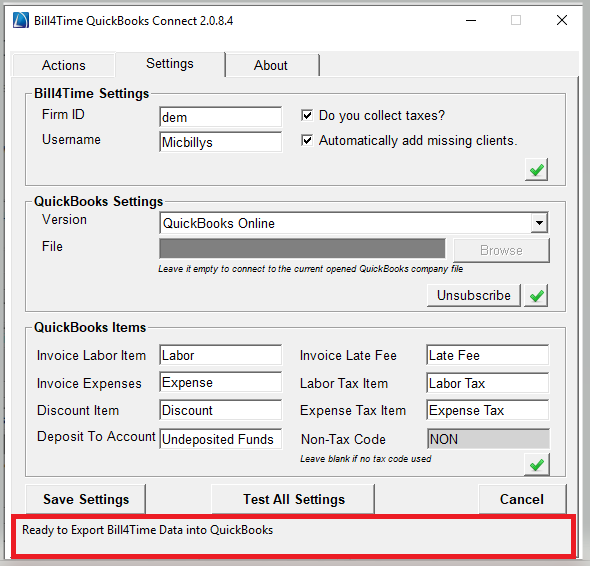
If you're having issues with one of the areas on the Connector validating, look at the bottom of the Connector screen. After you click "Test All Settings" error messages will appear at the bottom.
After setting up the QuickBooks Connector, when your customer clicks the Export button, this will bring up a spreadsheet will all the records that are going to be transferred. This spreadsheet functions just like an Excel spreadsheet. You can expand the columns to see additional information. To the far right, there is an QB Error Msg column. This is where you will see the error messages for the records that won't transfer.

Below are a few of the common errors you may see when using the connector:
1. If you're getting the following error:

Make sure under the Bill4Time Settings on the Connector, the "Automatically Add Missing Clients" is checked.

Existing clients in QuickBooks must be exactly the same as Bill4Time. If there is a discrepancy between the client names, it will result in an error. Additionally, if there are any punctuation symbols, the system may not recognize the client names as the same.
2. If you get this error message when trying to click the Export button:
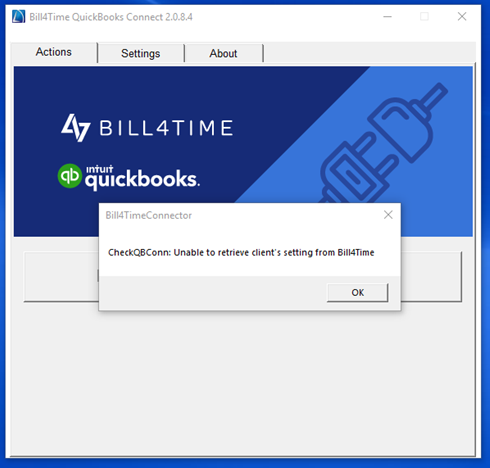
Make sure the information in the Bill4Time Setting area matches what they use to log into Bill4Time with.
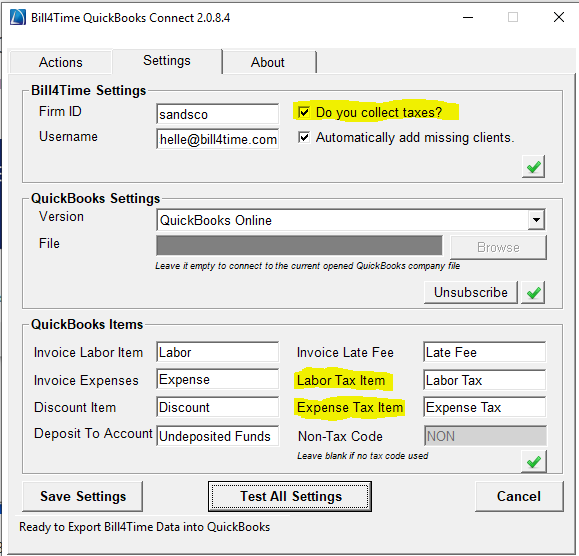
3. If you get this error message in the QB Error Msg section:

Then you have to go back to the Bill4Times Settings and place a checkmark next to "Do you Collect Taxes?" Then you need to scroll down to the QuickBooks Items section and add in the the Items for "Labor Tax Item" and "Expense Tax Item."
4. If you get this error message in the QB Error Msg section:

Then your Customer needs to go in and edit the Client name and make it less than 41 characters. The Customer can leave the the Billing Name as long as they want. Click here for addition Character limitations in QuickBooks

5. To disconnect the Bill4Time Connector on the desktop version of QuickBooks, follow these steps:
- Go into your QB account and go to Edit – Preferences
- Go to Integrated Applications – Company Preferences
- Click on B4T Connector, then click Remove
- Open your QB connect program and click the verify button under the QuickBooks setting
- Close your QB connect program and your QB account
- Re-open your QB account
- Re-open your QB connect program
- You should get a certificate pop-up in your QB account
- Click Yes, always; allow access even if QuickBooks is not running and click Continue, then Yes, then Done
- Try the integration process again.
6. To disconnect the Bill4Time Connector on the Online version of QuickBooks, follow these steps:
- Login to https://apps.intuit.com/
- Click on My Apps
- If you have multiple QuickBooks Online companies, select the company with the app you would like to disconnect.
- Click Disconnect under the app you would like to remove
7. Every once in awhile, QuickBooks needs you to re-validate your connections. If you get the following error message you can follow the steps below:
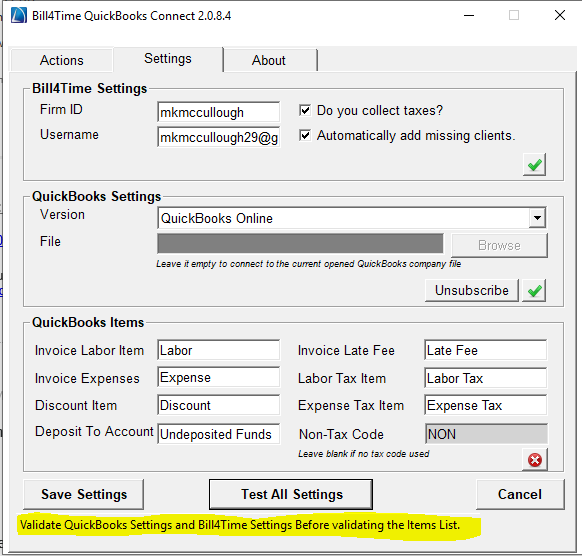
On the QuickBooks Connector, in the Quick Settings section, click the "Unsubscribe" button.

You will get a message saying you've been successfully Unsubscribed. After you get this message, go back to the connect and the button will now say "Subscribe." Click the Subscribe button and follow the prompts. Once you get the message that you've successfully linked Bill4Time with QuickBooks return to the connector. On the connector, click "Save Settings" then "Test All Settings" to verify you get 3 green checkmarks.

Comments
0 comments
Article is closed for comments.